We deployed an OPNsense router on server 1
We can connect through Remote Desktop to the Ubuntu Server
So, as you can see down below, we managed to get remote access through xrdp protocol to the ubuntu server.
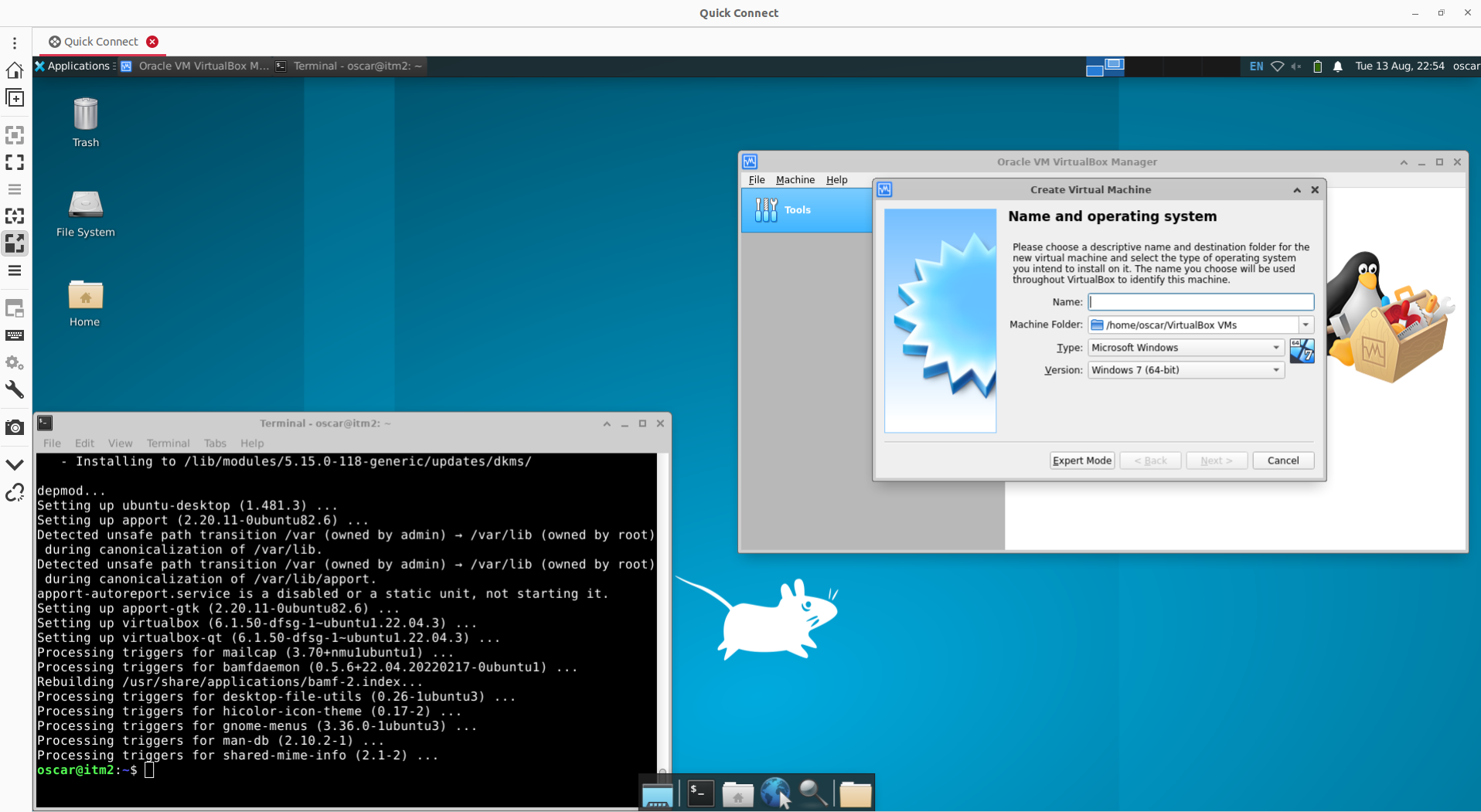 Remote Desktop connection through Remmina application
I have to be honest. I don’t know what I did wrong when configuring xrdp! I guess it’s one of those times, uh?!
So, let’s implement OPNSense router in the remote server
Anyways, moving through, shall we configure our OPNSense router?
So, remember that we needed to configure a router? Here, take a look on the below figure, can you spot the three routers we need:

No? How about now?
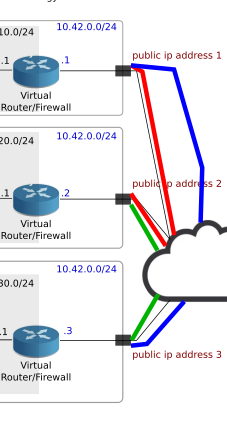
and, as you can see, we need to create dedicated tunnels between them.
But one step at a time!
Let’s start with the deployment of the first OPNSense Router in server 1.
The first idea that comes to my mind is to check the OPNSense documentation, maybe youtube tutorials, chatgpt, etc.
But, stop, we are engineers! we are methodic!
I am capable of figuring this problem out!
First, this installation is virtual, so we need to know what computational resources do we need for this router. Then, we need to find some sort of initial configuration. Then, we move into advanced configuration.
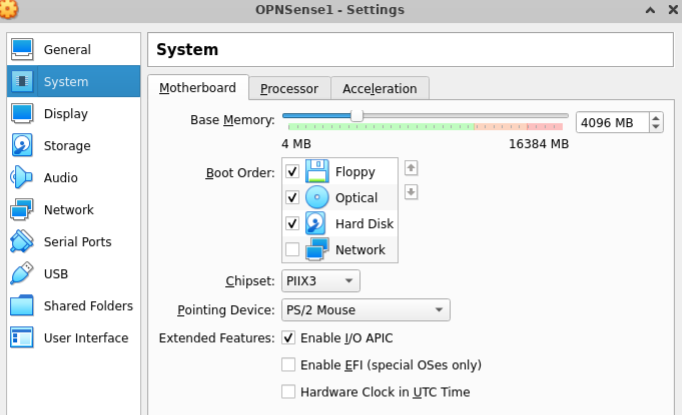
Found some computational requirements for the OPNsense VM
This link Hardware Sizing & Setup contains the minimum requirements to install a virtual local machine of OPNSense. The picture also depicts it:
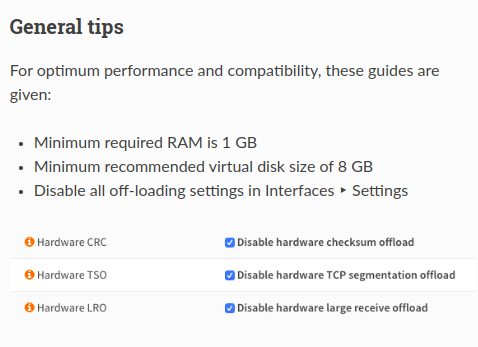
This link Installation contains the related to the installation process but I don’t find it that much useful since it does not contain a guide on virtualbox.
We quickly check this opnsense documentation (link)
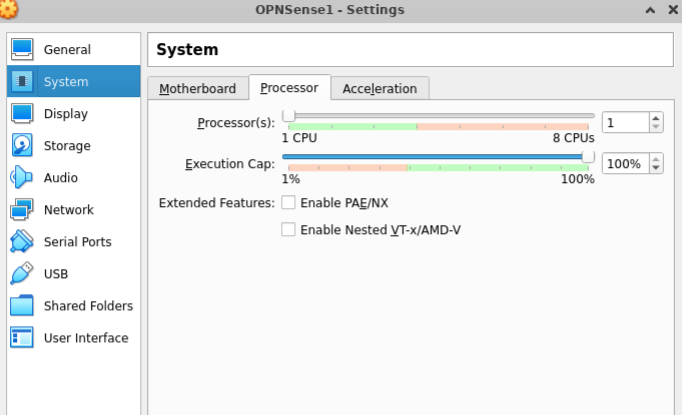
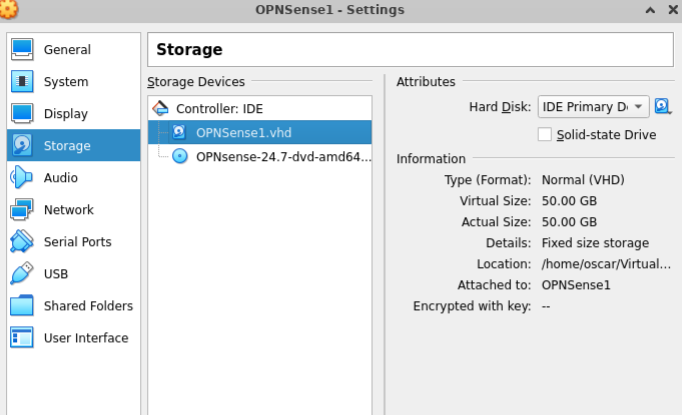
So, on the ladder link, opnsense documentation says we need to setup our virtual machine with the following minimum requirements:
- RAM: 4096 MB
- Processor: 1
- Storage: 50 GB
- Network: It does not mention it
But, in the documentation we didn’t found specs or suggestions for the network adapters of OPNsense router
[Little trouble here] Wait, what???
The official documentation doesn’t mention anything about network interfaces in a virtual local installation?
You can check it out here link. And, it is a little bit surprising because it leads you to think … I mean, we are implementing a router, right? Routers connect two or more networks. Therefore, when configuring a virtual router, we design how many networks we will directly connect. But, the documentation does not mention or suggests any network-interface configuration. And, this is not a simple issue because, in virtualbox, you can choose a network interface to be nat, bridge, only-host type, etc. So, it’s not so simple as just pick 2, and be this and that. [End of Little trouble]
Then, we decide to check some video tutorials
How about if we go straight to a youtube video.
So, this is the video for reference that I will use to configure the interfaces of the vm: link
Minute 1:22 suggests to go, in VirtualBox, to Tools > Network > Host-only Networks > Create > vboxnet0 (it will create its own ip range)
Minute 1:34 suggests to setup two network adapters in the VM. Adapter 1 to be setup as Bridge Network (pointing to the actual ethernet interface of the server) and Adapter 2 to be setup as Host-Only Adapter, selecting the vboxnet0 network that we just created.
The author takes note of both mac addresses as a future reference for acknowledging which interface to configure at OPNsense dashboard.
Now, let’s try to really create the OPNsense router
Let’s connect to our remote server and create the vm:
This are Remmina config to access it (of course, I won’t reveal sensible data): 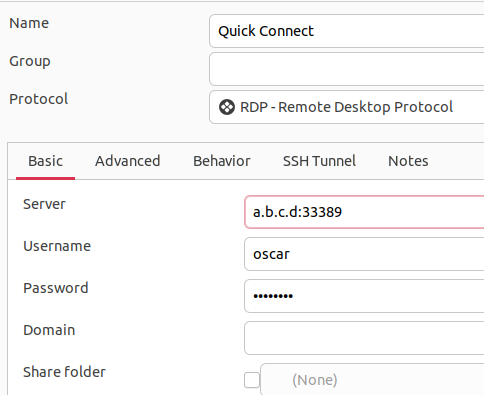
We connect and …
Here we have a remote desktop connection to our remote server:
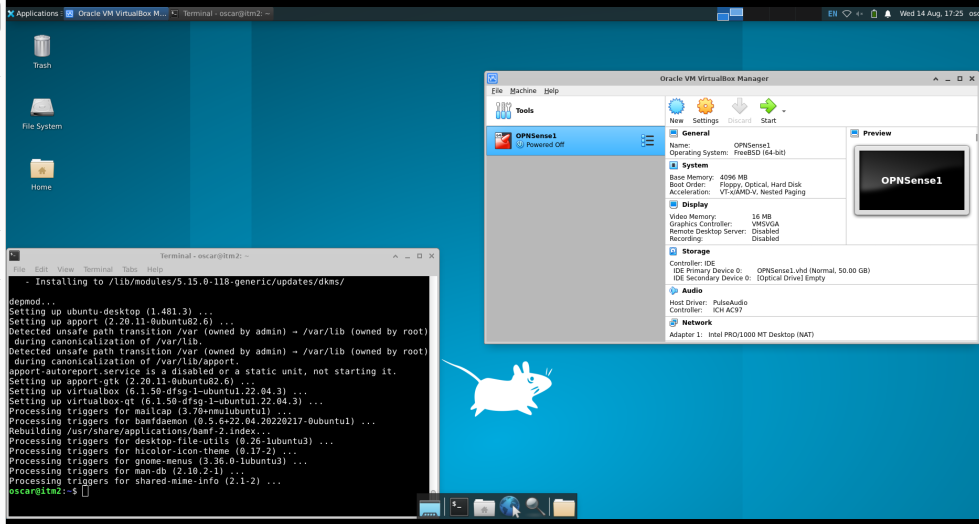
Little note here:
Problem with XRDP and remote multiple sessions:
Now, for some reason, every time that I logout from my user session in the Remmina -remote-desktop- connection, the server does not accept my user password when trying to log-in again.
I spent so much time trying to solve that issue but I coulnd’t. I will put some references here to quote what am I talking about:
- xRDP - xRDP shows only black screen after authentication windows - HowToFix!
- xRDP - Allow muktiple sessions (local and remote) for the same user - HowTo
- xRDP - cannot read /etc/xrdp/key.pem. Permission denied error explain
… Back to the OPNsense router VM Creation
VM system
VM network
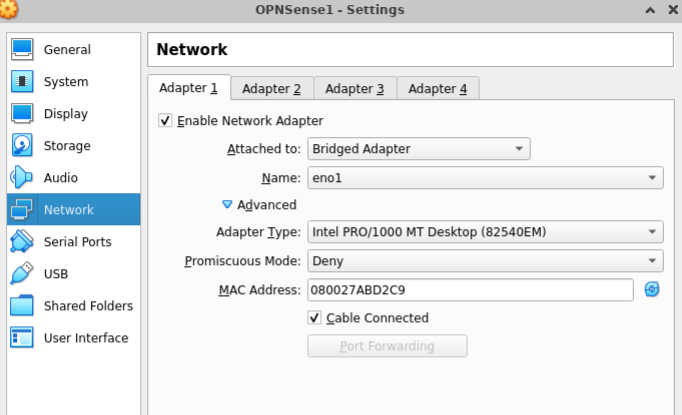
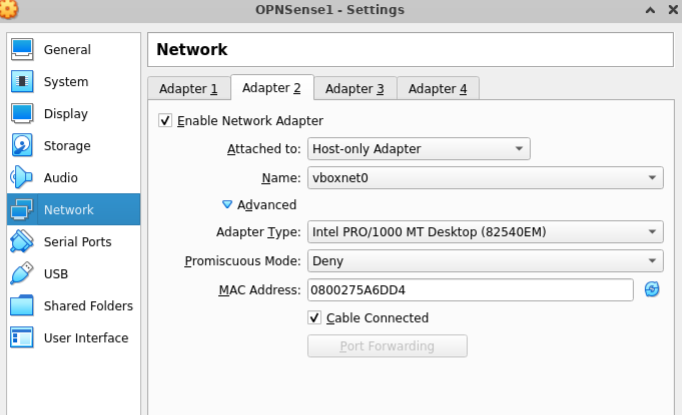
… we hit start … and, we found some problems
There is an error when starting this vm:
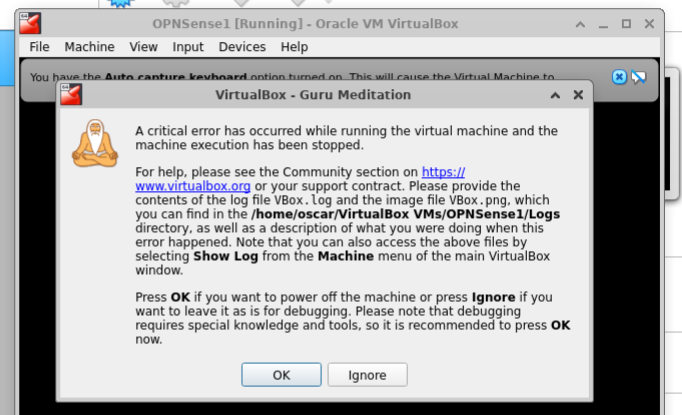
VirtualBox - Guru Meditation
A critical error has occurred while running the virtual machine and the machine execution has been stopped.
The message suggests us to inspect the file VBox.log and that’s what we do:
1
2
oscar@itm2:~$ cat VirtualBox\ VMs/OPNSense1/Logs/VBox.log | grep ERROR
00:00:00.938704 ERROR [COM]: aRC=NS_ERROR_INVALID_ARG (0x80070057) aIID={4680b2de-8690-11e9-b83d-5719e53cf1de} aComponent={DisplayWrap} aText={Argument aWidth is invalid (must be aWidth != 0 && aWidth <= 32767)}, preserve=false aResultDetail=0
Also, there is another warning pop up, and, I don’t know if it’s related to the same issue that is causing the vm not to work:
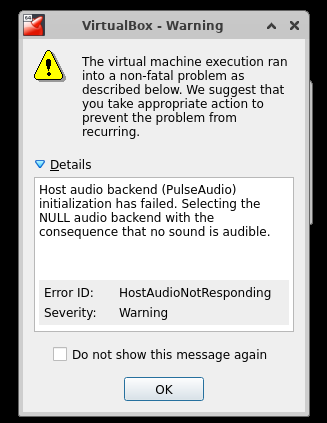
We tried disabling the audio on the vm but apparently, it didn’t solve the critical error problem.
We inspect again the VBox.log file:
1
2
3
oscar@itm2:~$ cat VirtualBox\ VMs/OPNSense1/Logs/VBox.log | grep ERROR
00:00:00.902734 [/Devices/mc146818/ERROR [COM]: aRC=NS_ERROR_INVALID_ARG (0x80070057) aIID={4680b2de-8690-11e9-b83d-5719e53cf1de} aComponent={DisplayWrap} aText={Argument aWidth is invalid (must be aWidth != 0 && aWidth <= 32767)}, preserve=false aResultDetail=0
00:00:54.393083 ERROR [COM]: aRC=NS_ERROR_INVALID_ARG (0x80070057) aIID={4680b2de-8690-11e9-b83d-5719e53cf1de} aComponent={DisplayWrap} aText={Argument aWidth is invalid (must be aWidth != 0 && aWidth <= 32767)}, preserve=false aResultDetail=0
I decided to perform a google search of the error:
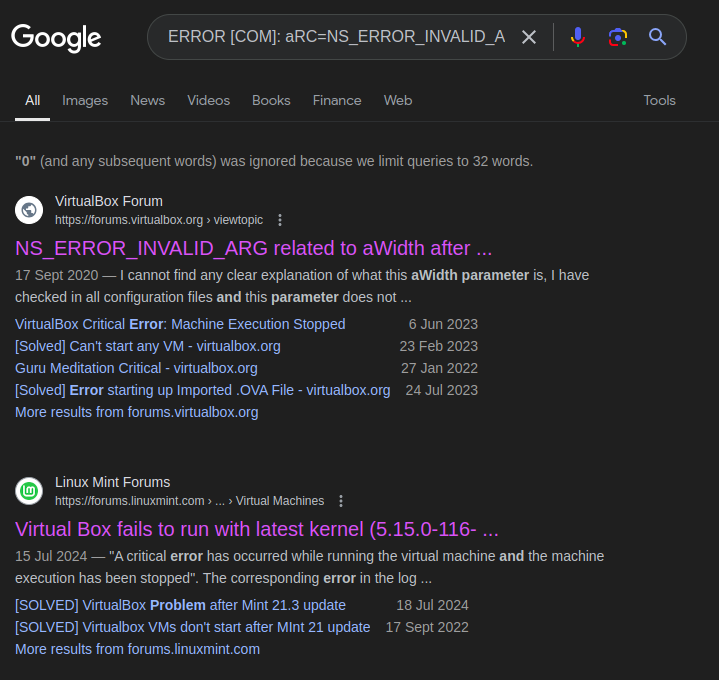
and on the second result is a forum, and click there (link) and the first message contains the same error I am getting in VBox.log:
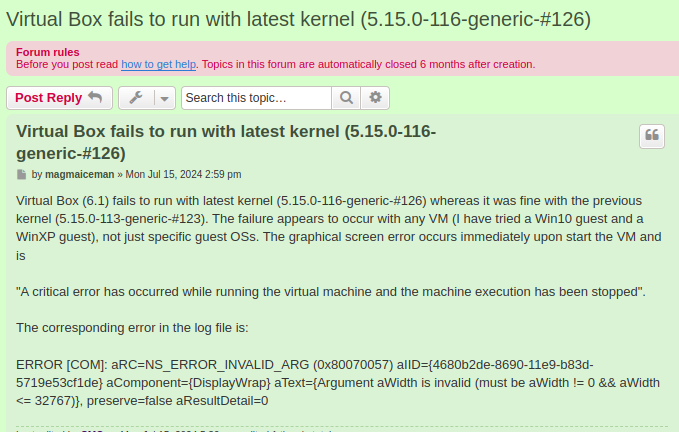
so, apparently the solution everyone converges is to upgrade the virtualbox to 7.0 version.
I follow the steps from the virtualbox official documentation to install virtualbox 7.0 link
and it worked!!!
Now, you can see that virtualbox is loading the OPNsense router dashboard in the remote server.
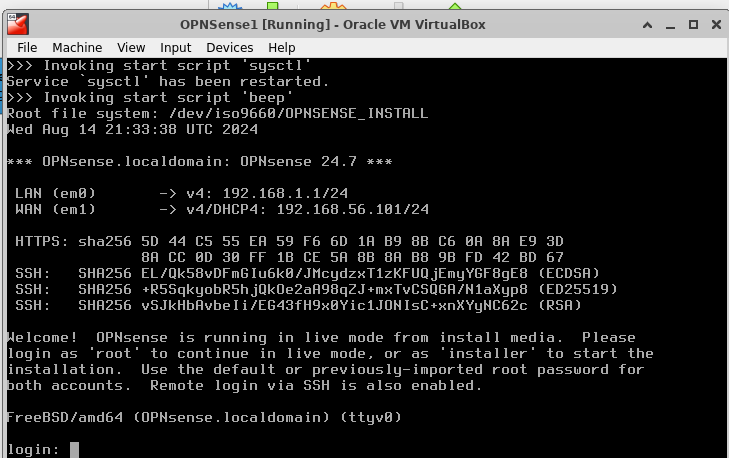
Now, that we can setup the OPNSense router, next task is to actually set it up …
So, the credentials to access
- root:opnsense (Live mode)
- installer:opnsense (Installer mode)
As we are in the installer role at the moment, let’s opt for the second one.
Then, we are shown up the following features to configure:
Keymap selection
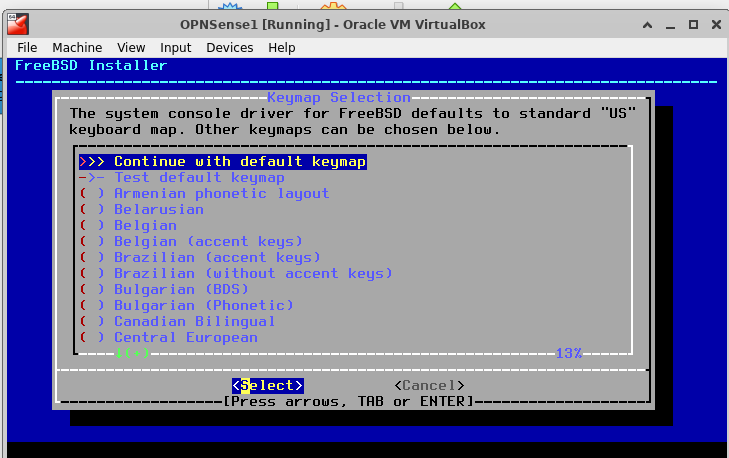
Choose UFS
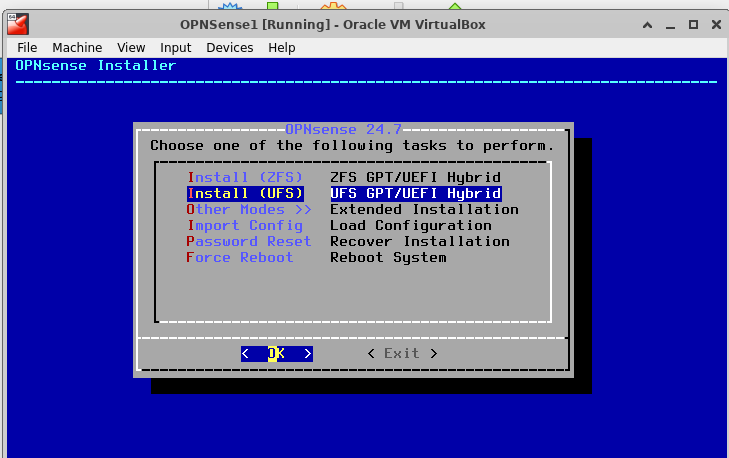
UFS Configuration
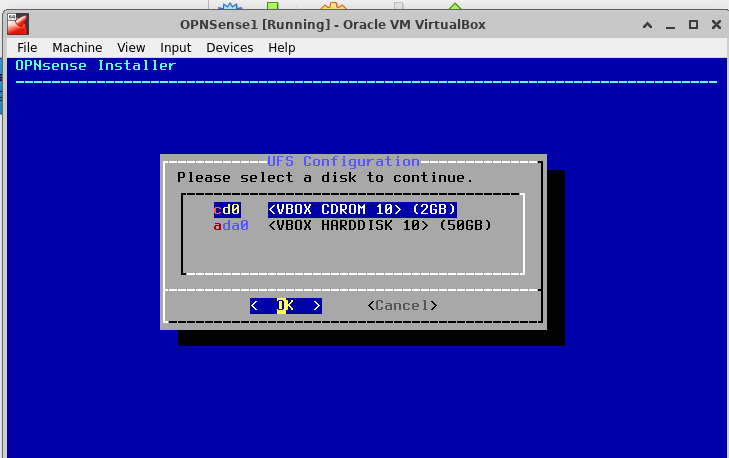
choose the hard disk, not the cd room

it is going to ask us confirmation:
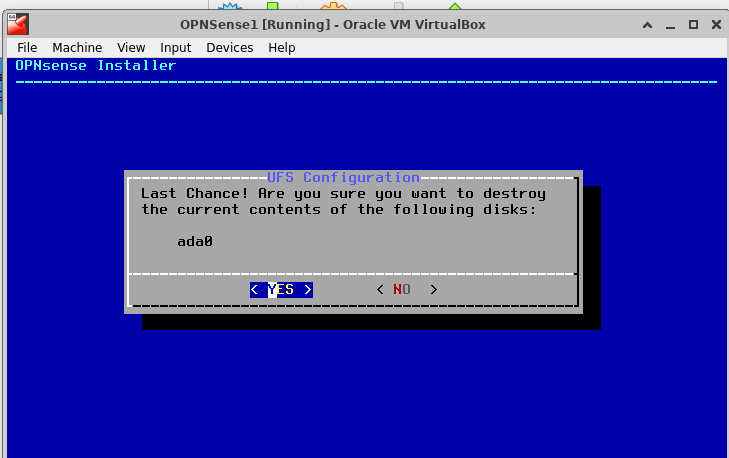
just press Yes

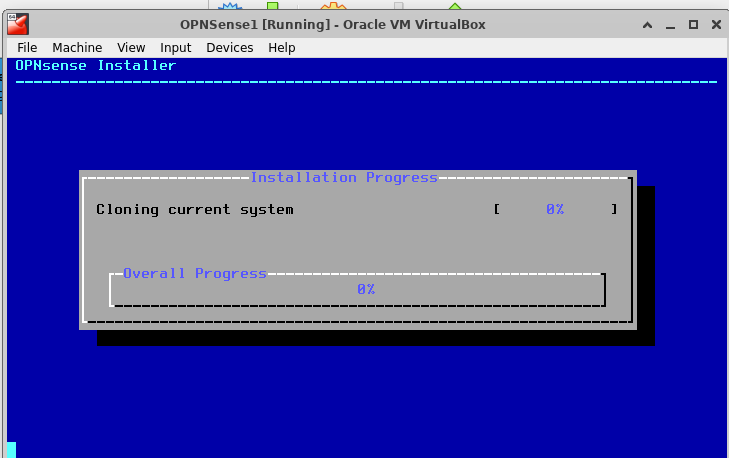
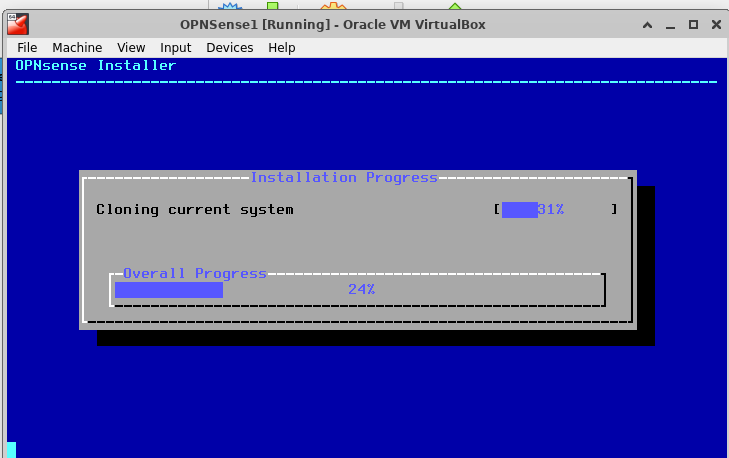
installation complete

We choose Complete Install - Exit and reboot
Once OPNsense rebooted:

We shutdown the vm.
We remove the DVD installer from the CD-ROOM device of the vm.
Then, we initialize the vm again:
and, it’s telling me that:
- The LAN interface has the ip address of
192.168.1.1/24 - The WAN interface has the ip address of
192.168.56.101/24
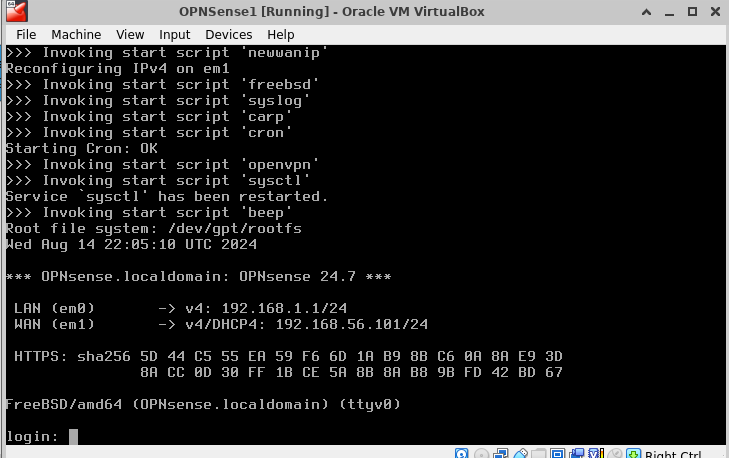
We opt for option 1
we answer n to the two next questions
and we get:

and, remember we configured our vm as follows:
Then, we have that
| Network Interface | OPN Interface | MAC Address | VBox |
|---|---|---|---|
| LAN | em0 | 08:00:27:ab:d2:c9 | bridge |
| WAN | em1 | 08:00:27:5a:6d:d4 | vboxnet0 |
And this table is wrong!
why?
because, the WAN interface is the one in bridge mode with the physical interface of the host, whilst the LAN interface is the one which should be set up in host-only network type given that will support an internal network.
The correct assigment should be as follows
| Network Interface | OPN Interface | MAC Address | VBox |
|---|---|---|---|
| WAN | em0 | 08:00:27:ab:d2:c9 | bridge |
| LAN | em1 | 08:00:27:5a:6d:d4 | vboxnet0 |
So as we do:
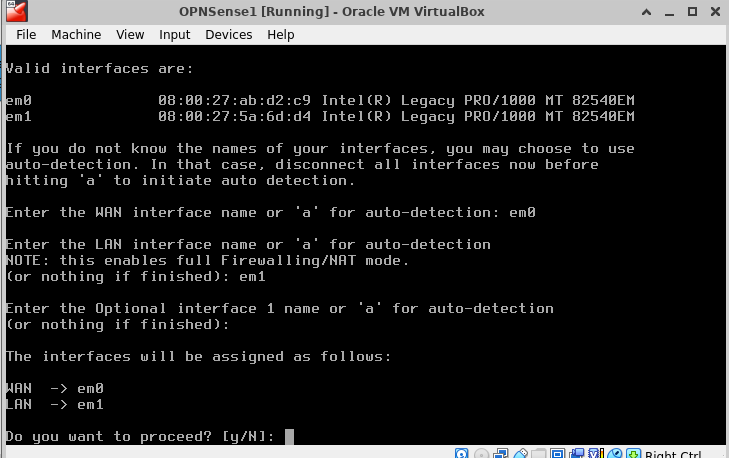
Once the interfaces are well assigned, we proceed with setting the interface IP Address
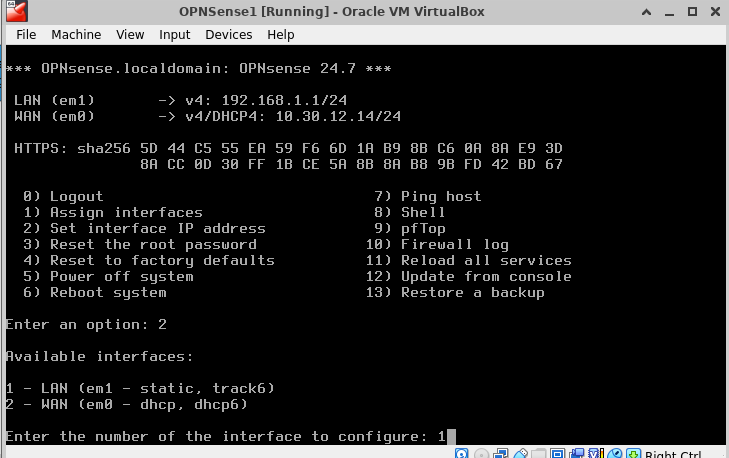
LAN will be the first interface to be configured:
We disable LAN interface to obtain its ip address through DHCP protocol
We setup LAN ipv4 address as 192.168.56.2 according to the vboxnet0 ip range that we previously saw.
And we configure the subnet mask to be 24
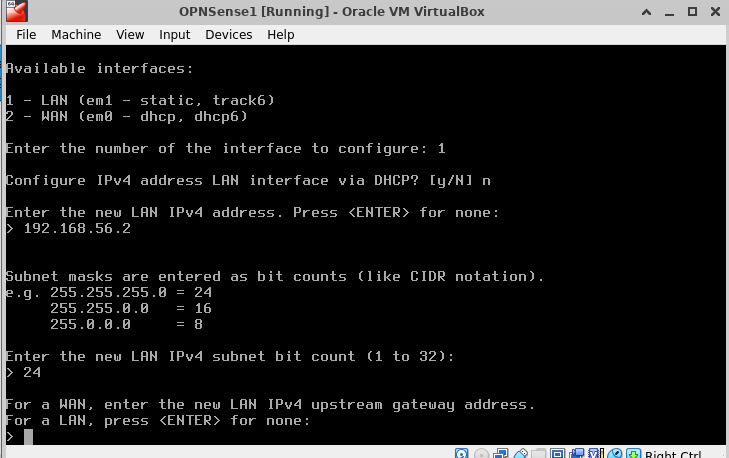
We managed to configure the OPNSense interfaces … and enabled the GUI interface service …
Then, we:
Reject configuring IPv6 in the LAN interface
Reject configuring IPv6 in the LAN interface via DHCP
We don’t provide any IPv6 LAN address
We enabled the DHCP server on LAN
We specified the range from: 192.168.56.10 - 100
We reject changing the web GUI protocol from HTTPS to HTTP
And, we request to generate a new self-signed web GUI certificate
Finally, we restore web GUI access to defaults
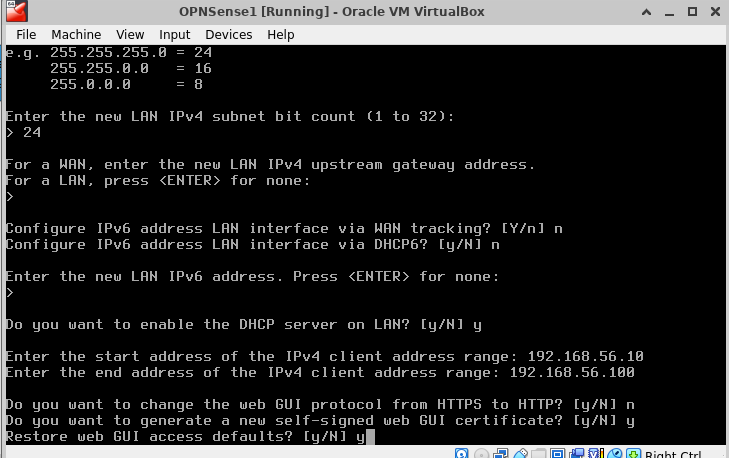
Now, we want to access OPNSense configurations through the GUI Interface
So, basically, after that set of config questions, we are prompted a message telling us that we can access the web GUI interface at http://192.168.56.2
But, of course, … another stupid error … this time is the web-browser in the host with some error …
But, when trying to open a web-browser in the ubuntu host, we got a message of, apparently, firefox complaining about an error.
I didn’t take a picture of the Firefox GUI error.
But, I did have a error log that showed when I tried to execute firefox from the terminal
1
2
3
4
5
6
7
oscar@itm2:~$ firefox
update.go:85: cannot change mount namespace according to change mount (/var/lib/snapd/hostfs/usr/local/share/doc /usr/local/share/doc none bind,ro 0 0): cannot open directory "/usr/local/share": permission denied
update.go:85: cannot change mount namespace according to change mount (/var/lib/snapd/hostfs/usr/share/gimp/2.0/help /usr/share/gimp/2.0/help none bind,ro 0 0): cannot write to "/var/lib/snapd/hostfs/usr/share/gimp/2.0/help" because it would affect the host in "/var/lib/snapd"
update.go:85: cannot change mount namespace according to change mount (/var/lib/snapd/hostfs/usr/share/libreoffice/help /usr/share/libreoffice/help none bind,ro 0 0): cannot write to "/var/lib/snapd/hostfs/usr/share/libreoffice/help" because it would affect the host in "/var/lib/snapd"
update.go:85: cannot change mount namespace according to change mount (/var/lib/snapd/hostfs/usr/share/sphinx_rtd_theme /usr/share/sphinx_rtd_theme none bind,ro 0 0): cannot write to "/var/lib/snapd/hostfs/usr/share/sphinx_rtd_theme" because it would affect the host in "/var/lib/snapd"
update.go:85: cannot change mount namespace according to change mount (/var/lib/snapd/hostfs/usr/share/xubuntu-docs /usr/share/xubuntu-docs none bind,ro 0 0): cannot write to "/var/lib/snapd/hostfs/usr/share/xubuntu-docs" because it would affect the host in "/var/lib/snapd"
Error: no DISPLAY environment variable specified
So, before putting our selves into researching the issue, I opted for rebooting the server.
Let’s wait some seconds …
Once the VM rebooted, we tried to initialized firefox, the promp continued showing no DISPLAY environment variable specified
Syslog did not show anything
1
2
3
4
5
6
7
8
9
10
11
12
oscar@itm2:~$ sudo tail -f /var/log/syslog
[sudo] password for oscar:
Sep 15 11:29:34 itm2 dbus-daemon[1391]: [system] Reloaded configuration
Sep 15 11:29:34 itm2 dbus-daemon[1391]: Unknown username "whoopsie" in message bus configuration file
Sep 15 11:29:34 itm2 dbus-daemon[1391]: Unknown group "power" in message bus configuration file
Sep 15 11:29:34 itm2 dbus-daemon[1391]: [system] Reloaded configuration
Sep 15 11:29:39 itm2 dbus-daemon[1391]: Unknown username "whoopsie" in message bus configuration file
Sep 15 11:29:39 itm2 dbus-daemon[1391]: Unknown group "power" in message bus configuration file
Sep 15 11:29:39 itm2 dbus-daemon[1391]: [system] Reloaded configuration
Sep 15 11:30:14 itm2 dbus-daemon[1391]: Unknown username "whoopsie" in message bus configuration file
Sep 15 11:30:14 itm2 dbus-daemon[1391]: Unknown group "power" in message bus configuration file
Sep 15 11:30:14 itm2 dbus-daemon[1391]: [system] Reloaded configuration
dmesg maybe has some clues:
1
2
sudo dmesg | grep -i firefox
[  635.293572] audit: type=1400 audit(1723680532.024:85): apparmor="DENIED" operation="open" profile="snap-update-ns.firefox" name="/usr/local/share/" pid=4011 comm="5" requested_mask="r" denied_mask="r" fsuid=0 ouid=0
So, we try from the terminal through the remote desktop connection, and found this error:

We googled the issue
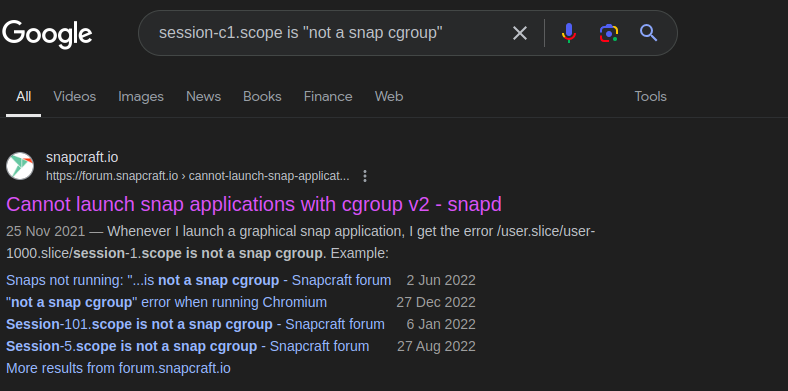
The first search result is a forum, in which there is a message that was worth the try

we applied it but still there is an error:
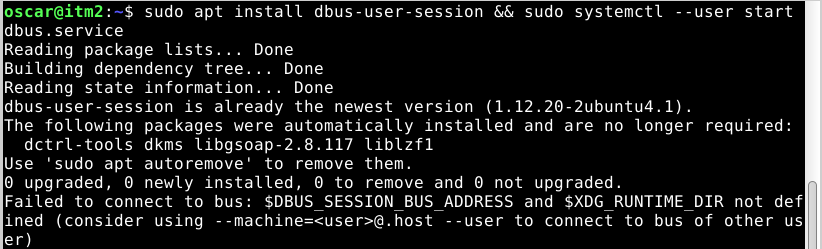
So we tried by uninstalling and re-installing firefox
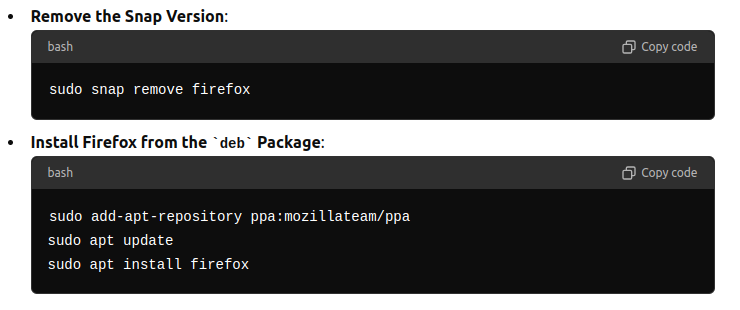
and no, still unable to make firefox run
Time for a small decision
At this point, we have two paths
Continue trying to solve the issue (haven’t we learned a lot yet)
Find ways to download and install through terminal other web-browsers
I choosed to continue with option 1
So, apparently there is this problem in which snap applications don’t run through VNC sessions, and, why not, probably any remote desktop connection
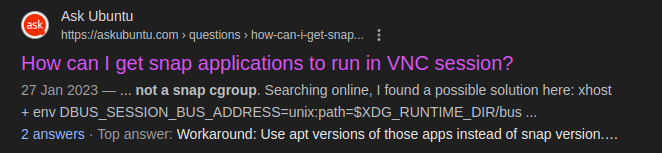
we are going to try solution described in link
So, we uninstalled all current versions of firefox (from apt, from snap)
And, proceed to install firefox-esr
It worked!
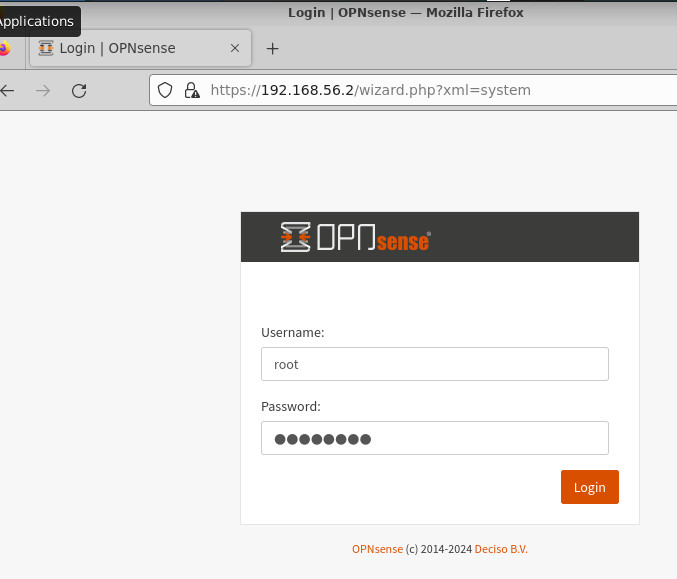
We logged in with root/opnsense credentials
That’s all for today